


Download Limbo Windows Theme – free horror desktop theme for Windows
Overview
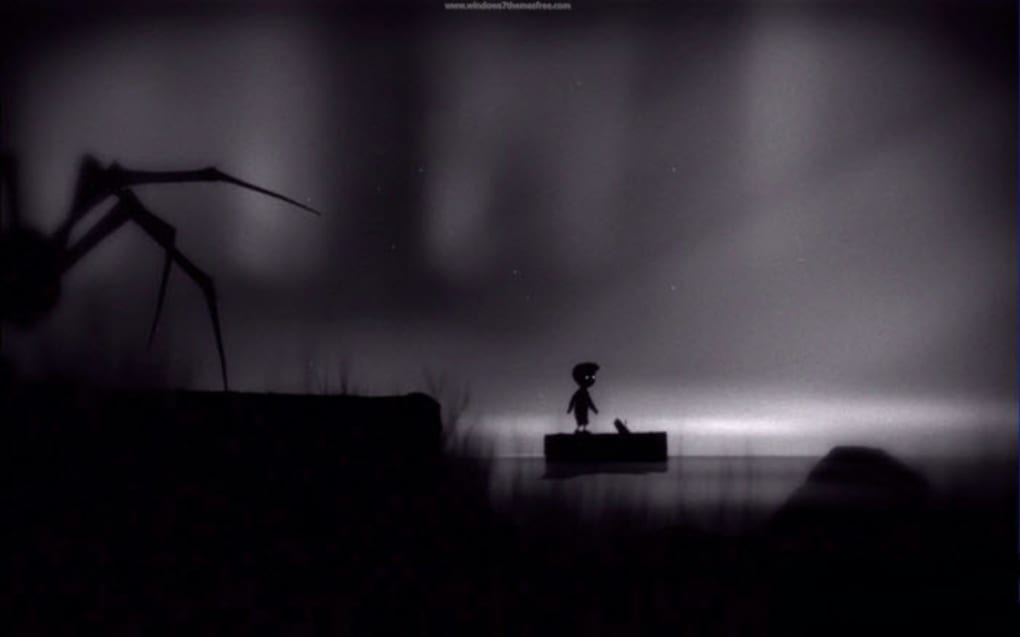
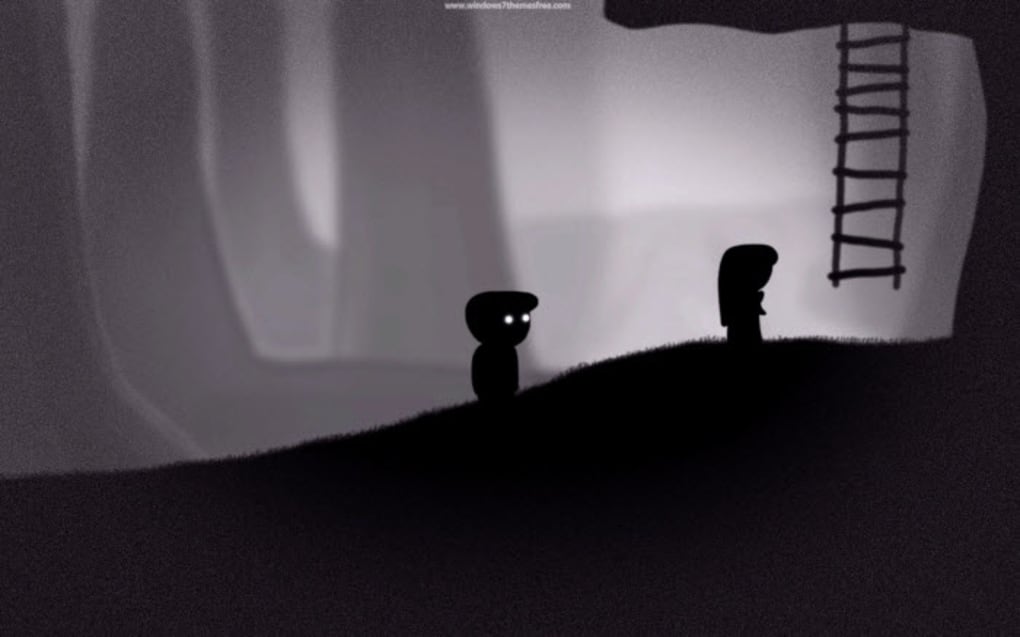
Limbo Windows Theme is a lovingly crafted desktop makeover that brings the stark, monochrome atmosphere of the award‑winning indie horror platformer *Limbo* directly to your Windows 7 (and newer) PC. The theme packs 67 high‑resolution wallpapers, custom‑shaped icons, a uniquely designed Start button, and several subtle UI tweaks that together recreate the game’s unsettling mood on your everyday workspace. All assets are bundled in a single ZIP file, making the download process straightforward. While the visual components are ready to use out of the box, the theme’s deeper customization layers—such as the Start button and icon packs—require manual installation. This extra step may feel a bit tedious for users unfamiliar with registry edits or theme‑loader tools, but the end result is a cohesive, immersive desktop that feels like stepping into the game’s shadowy world every time you log on.
Fans of atmospheric indie titles will appreciate how the theme respects the original game’s aesthetic: muted greys, stark contrasts, and silhouettes that seem to whisper from the edges of the screen. Even if you’ve never played *Limbo*, the theme can serve as a conversation starter or a mood‑setter for late‑night coding sessions, creative work, or simply a change of scenery from the usual bright Windows background. Because the package is completely free, it also makes a low‑risk experiment for anyone curious about customizing Windows without committing to a paid skin or third‑party launcher.
Key Features
- 67 Ultra‑HD Wallpapers: Each image captures a distinct scene from the game, from fog‑filled forests to eerie platform segments, all rendered at 1920×1080 or higher for crisp display on modern monitors.
- Custom Icon Pack: Over 150 icons redesigned to match Limbo’s silhouette style, covering common file types, folders, and system shortcuts.
- Unique Start Button: A handcrafted Start menu button that mirrors the game’s signature black‑and‑white silhouette, giving the taskbar a subtle yet unmistakable twist.
- Cursor Set: A set of three cursor themes (default, hover, and busy) that blend seamlessly with the overall monochrome palette.
- Sound Effects (optional): Optional .wav files that can be linked to Windows events (logon, error, shutdown) for an extra layer of immersion.
- Easy‑to‑Navigate ZIP Archive: All assets are neatly organized into folders (Wallpapers, Icons, Cursors, Extras) with a clear README file.
- Free and No Ads: The theme is distributed without hidden fees, adware, or telemetry, ensuring a secure download experience.
Beyond the visual upgrades, the theme is designed to be lightweight. It does not include heavyweight animation scripts or background services that could slow down older hardware. The wallpapers are stored as standard JPEG/PNG files, and the icons are simple ICO files, meaning they load instantly and do not consume excessive RAM. For users who prefer a minimalist approach, you can apply only the wallpapers and skip the more invasive UI changes, tailoring the experience to your comfort level.
Installation & Usage Instructions
Installing Limbo Windows Theme is a two‑step process: extracting the ZIP archive and applying the visual components. Follow these steps for a smooth setup:
- Download the ZIP file: Click the “Download” button on the official page and save the file to a location you can easily access, such as your Desktop or Downloads folder.
- Extract the contents: Right‑click the ZIP file and select “Extract All…”. Choose a destination folder (e.g., C:\LimboTheme) and let Windows decompress the files.
- Set a wallpaper: Open the “Wallpapers” folder, right‑click any image you like, and choose “Set as desktop background”. For a rotating slideshow, go to Settings → Personalization → Background, select “Slideshow”, and point it to the “Wallpapers” folder.
- Apply the icon pack (optional): Right‑click the “Icons” folder, select “Copy”, then navigate to C:\Windows\Resources\Themes\Icons (you may need administrative rights). Paste the icons and then open “Personalization” → “Themes” → “Desktop icon settings”. Click “Change Icon” for each shortcut you wish to modify, browsing to the new icons.
- Install the custom Start button: This step requires a third‑party theme‑loader such as UltraUXThemePatcher (free) or Open Shell. After installing the patcher, replace the existing
imageres.dllfile in C:\Windows\Resources\Themes\Resources\ with the “StartButton.dll” provided in the “Extras” folder. Restart your computer to see the new button appear. - Activate cursors (optional): Open “Control Panel” → “Mouse” → “Pointers”. Click “Browse” for each cursor role (Normal Select, Help Select, etc.) and point to the corresponding .cur files in the “Cursors” folder.
- Link sound effects (optional): In “Control Panel” → “Sound”, scroll to “Program Events”. Assign the provided .wav files to events like “Windows Logon” or “Critical Stop” for a full‑sensory experience.
Once the assets are in place, you can switch back to the default Windows theme at any time by selecting “Windows” under “Personalization” → “Themes”. The theme’s components are non‑destructive; they merely replace visual references and can be removed by deleting the custom files or restoring the original system files from a backup.
For users who find the manual registry edits intimidating, community guides on forums such as Reddit r/WindowsThemes or DeviantArt provide step‑by‑step screenshots. Always create a system restore point before applying third‑party patches to safeguard against unintended changes.
Compatibility, Pros & Cons
Supported OS: The theme was originally built for Windows 7, but the wallpapers and icons work flawlessly on Windows 8, 8.1, 10, and 11. The custom Start button may require a theme‑patcher that is compatible with your OS version; most modern patchers support Windows 10 and 11 without issue. Mobile platforms (Android, iOS) are not supported, as the theme relies on Windows‑specific system files.
Pros
- Authentic recreation of Limbo’s atmospheric aesthetic.
- High‑quality wallpapers suitable for 1080p and 4K displays.
- Completely free with no hidden costs or ads.
- Modular design lets you apply only the parts you like.
- Lightweight files that won’t slow down older PCs.
Cons
- Manual installation of the Start button and icon pack can be intimidating for beginners.
- Requires a third‑party patcher for full theme integration on newer Windows versions.
- No official support channel; troubleshooting relies on community forums.
FAQ
Is Limbo Windows Theme safe to download?
Yes. The theme is distributed as a plain ZIP file without any executable installers, adware, or telemetry. It’s recommended to download from the official source or trusted community pages.
Can I use the theme on Windows 10 or 11?
Absolutely. The wallpapers and icons work natively on Windows 10/11. For the custom Start button you’ll need a compatible theme‑patcher such as UltraUXThemePatcher.
Do I need admin rights to install the theme?
Changing wallpapers and icons for your user account does not require admin rights. However, replacing system files (e.g., the Start button DLL) does require administrator privileges.
Will the theme affect system performance?
No. All assets are static image and icon files that consume minimal resources. The only potential impact is the slight overhead of a theme‑patcher, which is negligible on modern hardware.
Can I revert back to the default Windows theme?
Yes. Simply open “Personalization” → “Themes” and select the default Windows theme. If you used a patcher, you can undo changes by restoring the original system files from a backup or using the patcher’s restore feature.
Conclusion & Call to Action
Limbo Windows Theme offers a compelling way to inject the haunting charm of one of indie gaming’s most iconic titles into your daily computing routine. By delivering a curated collection of wallpapers, icons, and UI tweaks, the theme turns an ordinary Windows desktop into a minimalist, mood‑laden canvas that feels both artistic and functional. While the manual steps required for full integration may deter the most casual users, the reward—a cohesive, atmospheric workspace—is well worth the effort for fans of the game or anyone looking to break free from generic desktop aesthetics.
If you’re ready to give your PC a fresh, eerie makeover, click the download button below, extract the files, and follow the straightforward installation guide. Remember to back up your current theme or create a system restore point before applying the Start button patch. Embrace the shadows, and let Limbo’s silhouette accompany you every time you sit down at your desk.
Download Limbo Windows Theme now and transform your desktop into a work of interactive art!







